What Is Informatica? How to Build Your First Data Integration
Published on: 31 August 2026
Author: Arun Kumar
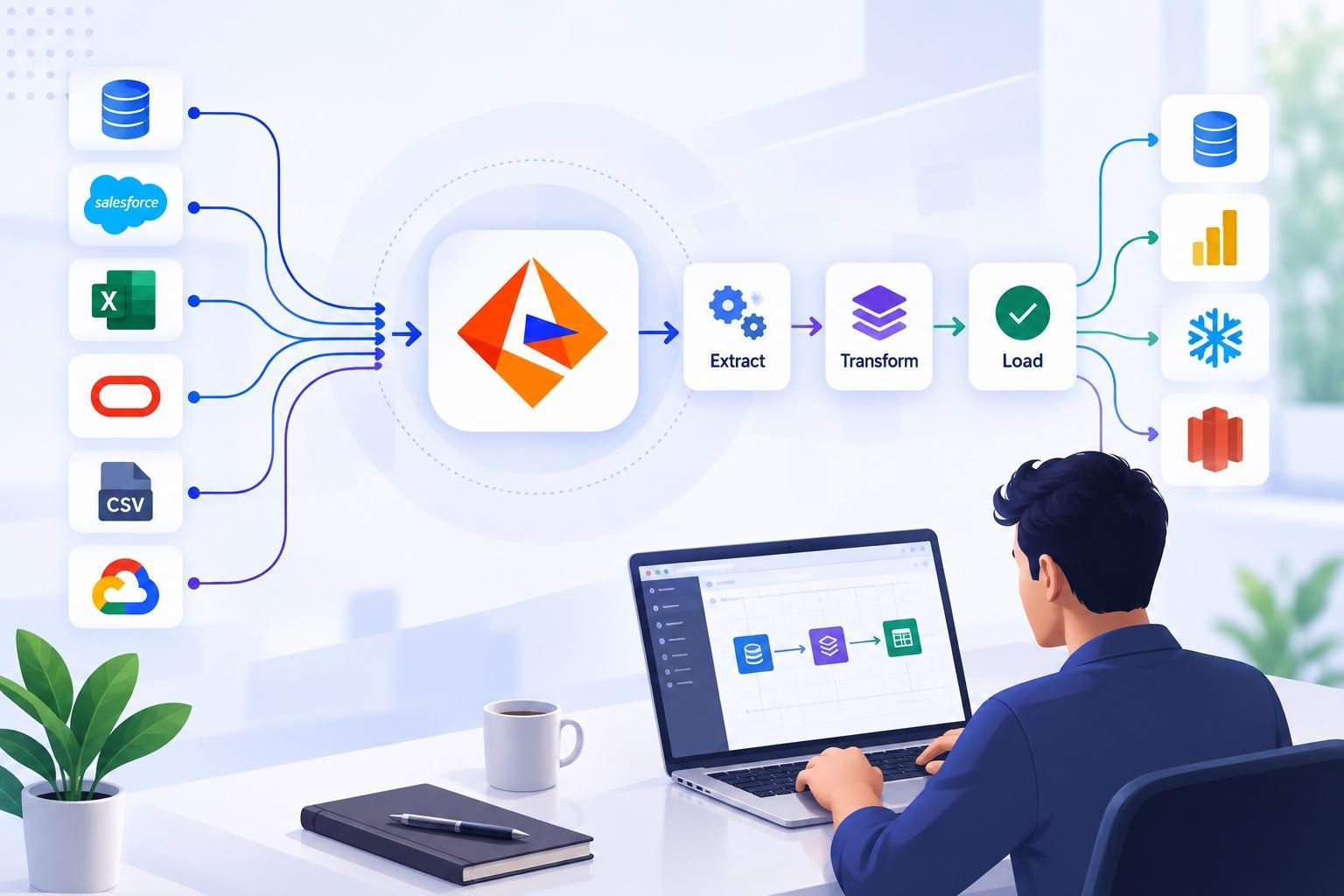
In most organizations, data does not stay in one place. Customer information may be stored in Salesforce through data integration and data management, while other business data may be available in databases, CSV files, APIs, or cloud applications. When these systems need to share data, moving and preparing that data can become a challenge.
This is where Informatica comes into the picture. Informatica provides capabilities that help you connect to different systems, work with data, transform it, and move it to a target system. In this blog, we will walk you through the basic setup we used to get started with Informatica Cloud Data Integration.
Let’s start with a trial organization and work through the basic setup step by step. We'll cover users and permissions, the runtime environment, connections, mappings, and how to run and monitor an integration job.
What Is Informatica?
In simple terms, the answer to “what is Informatica?” is that it is a platform that helps you move data between different systems and work with that data along the way.
For example, imagine that customer data is available in a CSV file and your company wants to load that information into a database. You need a way to read the file, make any required changes to the data, and then send it to the database.
A basic data integration process can look like this:
Source → Transformation → Target
The source is where the data comes from. The transformation is where you can clean, filter, or change the data. The target is where you want the final data to go.
Getting Started with an Informatica Trial Organization
I started by creating an Informatica trial organization using my work email address.
The trial organization gives you access to Informatica services that you can use to explore the platform and build your first integration.
For this walkthrough, the trial organization has the following editions:
Users, Roles and Permissions
After creating the organization, I checked the Users section to understand how access is managed in Informatica.
An organization can have multiple users, and different users may need different levels of access. For example, an administrator may manage users and organization settings, while a developer may mainly work with connections, mappings, and integration tasks.
Roles and permissions help control what users can access and what they can do in the organization.

How to Configure a Runtime Environment in Informatica
The next step was to understand how to configure a runtime environment in Informatica. Once the organization and user setup were ready, I moved to the runtime environment configuration.
You can think of the runtime environment as the place where your integration runs. In a typical setup, the Informatica Secure Agent executes integration tasks and communicates with the required source and target systems. Informatica's documentation also includes runtime environment configuration as part of getting started with Cloud Data Integration.


Once the runtime environment is ready, you can move on to creating your connections.
How to Create a Connection in Informatica Cloud
After setting up the runtime environment, the next step was learning how to create a connection in Informatica Cloud. I created the connection that would be used by the integration.
A connection tells Informatica what type of system you are connecting to and provides the required configuration for that connection. Depending on your use case, the connection could be for Salesforce, a database, a flat file, or another supported system.
For example:
Source Connection: CSV / Salesforce / Database
Target Connection: Database / Salesforce / Cloud Storage


After creating the connection, it is a good practice to test it before using it in an integration.
Create a Data Integration Mapping
Once the connection was ready, I moved to the mapping. This is where the actual data flow starts to take shape.
A mapping defines how data moves from a source to a target. This is where you tell Informatica which data you want to use and what should happen to that data before it reaches the target.
A simple mapping can look like:
Source → Transformation → Target
In my mapping, I used the Source → Transformation → Target approach. This makes it easier to see how the data moves through the integration.
Source → Transformation → Target
The final mapping should give you a clear visual flow:

Create and Run an Informatica Mapping Task
After completing the mapping, I created an Informatica mapping task so I could execute the integration.
A mapping defines the data flow, while an Informatica mapping task provides the configuration required to execute that mapping. When configuring a mapping task, you can specify the mapping, runtime environment, and other execution options.

After configuring the task, run it and wait for the execution to complete.
Monitor the Job
After starting the job, I checked the Monitor section to verify that the integration completed successfully.
Informatica provides monitoring information for mapping and task executions. You can open a job to see details such as the task name, execution time, duration, runtime environment, and Informatica Secure Agent used for the run.

If a job fails, the monitoring information can help you understand where the problem occurred so that you can go back to the mapping, connection, or configuration and make the required changes.
What Have We Built?
Informatica data integration flow:
- Organization
- ↓
- Users & Permissions
- ↓
- Runtime Environment
- ↓
- Connections
- ↓
- Mapping
- ↓
- Source → Transformation → Target
- ↓
- Mapping Task
- ↓
- Job Execution & Monitoring
Conclusion
Informatica may look like a large platform when you first open it, but the basic data integration process is quite easy to understand once you break it into smaller steps. Start with the trial organization, configure the required access and runtime environment, create your connections, and build a simple mapping.
Once you understand the Source → Transformation → Target flow and know how to run and monitor a job, you have a solid foundation for exploring Informatica further.
Ready to build your first integration? Start with a simple data source and see how Informatica can move that data into your target system.
Do you want to learn more about data integration and how it can connect to your business systems?